
- Catalogs
- ClearNav Inc.
- ClearNav Flight Computer

ClearNav Flight Computer

ClearNav Flight Computer
The Ribbon Menu in the ClearNav system can be toggled using the MENU button on the hand controller. It appears at the top of the map screen, highlighting the last accessed menu item. Navigation is done with the LEFT or RIGHT controller buttons, with immediate updates on the moving map and calculations.
The TASK icon provides access to task-related functions such as Edit, Action, Task Map, and Task List. The Edit screen allows task modifications, the Action screen manages task controls, the Task Map offers a real-time view, and the Task List supports maintenance functions.
The system displays the next destination and provides distance and altitude difference information. The Glide to Finish feature uses a checkered flag icon, while Glide to a Turnpoint uses a red pennant. Navigation switches to the center of the Finish Cylinder after crossing.
The MacCready setting affects calculations and graphical displays, with changes reflected in thermal track sizes. Green areas indicate lift rates meeting or exceeding the MC value.
ClearNav allows for Auto or Manual wind settings, impacting calculations. Auto Wind uses the last calculated winds, while Manual Wind requires input of direction and speed. Wind information is displayed on the map.
Altitude settings can be adjusted in mBar increments, with defaults set to GPS field elevation. Screen light intensity can be adjusted for power saving or ambient light conditions.
The OLC function calculates real-time flight metrics and scores, requiring specific benchmarks to be tracked.
Pilots can toggle or erase thermalling tracks, providing guidance to lift areas based on real-time climb metrics.
Setup Menus allow customization of personal settings, glider configurations, airspace, waypoints, and more. Options include pilot selection, final glide settings, map display options, and language preferences.
Pilots can control the display of ground tracks, map items, waypoint names, and map orientation. Options include Track Up and North Up orientations.
The system offers a 'Track Up' mode that switches to 'North Up' when circling, defined as a course change of 20 degrees or more per second for over 10 seconds. The display reverts to 'Track Up' when circling ends.
The system allows customization of units for speed, distance, altitude, and vertical speed. Language options include German, English, Spanish, and French.
Additional flight metrics can be displayed on the moving map, organized into columns based on their category.
Users can select, add, or edit glider IDs and types, and enter polar data for performance calculations.
The system provides options to set warning margins for SUA, ignore certain airspaces, and manage SUA files. Alarms can be customized for different airspace types.
Users can select a home field, manage waypoint files, and edit waypoint attributes. The system supports loading and unloading of waypoint files.
The flight recorder menu allows editing of pilot and glider information, transferring flight logs, and making IGC declarations. Logs can be transferred to external storage with customizable intervals.
This section provides real-time updates on GPS and ClearNav data and status.
Users can enable SIM operation, adjust playback speed, pause SIM operation, and choose between Free Flight or IGC File Playback.
Allows setting the local time in hours, with all flight logs and declarations stored in UTC time.
Displays real-time data and status for serial ports, with continuous updates.
Provides real-time FLARM data and status information.
- Get Logs: Retrieve flight logs from the Cambridge instrument.
- Upload WP: Upload waypoints to the Cambridge instrument.
- CAI Info: Displays real-time CAI data and status.
Reports diagnostic data for ClearNav, aiding technicians in operational issue research.
Provides information on the unit's serial number, software and firmware versions, and sealed status.
Catalog excerpts
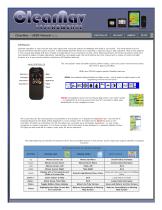
ClearNav - USER Manual (v5.i2) CONTROLLER ClearNav operation is very intuitive and many pilots start using the system immediately with little or no tutorial. The initial sections of this manual therefore describe system function in abbreviated detail for those who would like to take this 'plug-n-play' approach. Most of the graphics in the manual also display drill-down images or explanations if you mouseover or click. Other following sections will review all system features in more detail to explain complex operations, calculations, and design logic. We will therefore start the manual with a review of hand-controller function as it is your communication interface to all ClearNav features. HAND CONTROLLER The nine-button hand controller buttons perform select, zoom and cursor movement functions like mice or game controllers. MENU and FOCUS support specific ClearNav features. Zoom in (*) Lcfi Arraw Down Arrow-Zoom Out (-) .— Menu ' Up Arrow ’m'~ Right Arrow "'Select ^ FflCUB MENU immediately displays/hides the ribbon menu - which gives the pilot access to all supporting screens and functions. FOCUS immediately returns to the Moving Map when in any other screen ... or highlights the moving map Cursor Box for 5 seconds to allow easy identification on the navigation screen. The Cursor Box can be moved quickly and precisely to any location on or beyond the displayed map - and the list of enclosed Waypoints and SUAs will be displayed in a new window when the pilot hits the SELECT button on the controller. The pilot can scroll down the list and select any turnpoint as an immediate destination - or just review navigation or airport information in the lower window. SUA information is also displayed in a separate tabbed window. The pilot can also mark lift or create a mark point for future reference. The table following summarizes the behavior of the hand controller buttons in the primary screen types that support ClearNav navigation functions.
Open the catalog to page 1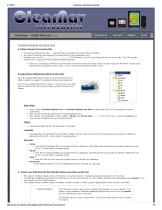
ClearNav Operations Manual UPLOADING WAYPOINT AND OTHER FILES A. Obtain Wavpoint/Turnpoint files • CN preloads World Terrain files ... and SUA files and Waypoint/Turn point files for Minden. • You have to load SUA and Waypoint/Turn point files for your geographic area. • ClearNav can use STX /Soaring Turnpoint Exchanged CUP (SeeYou), and CAI (Cambridge) files for turnpoint data. The STX format is preferred as it supports all of the ClearNav display features. ° Pilots can usually get STX files for contests from the WW Turnpoint Exchange. They can also create STX files from scratch using Microsoft...
Open the catalog to page 2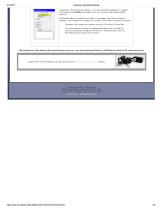
ClearNav Operations Manual Up4<i<«r Syclam Updoto Itxwmipd it» Ht>w~ }>«*■<;M r SotVnVft r Lwguuyrt r Map Data r >" AiriMC* luMm "Select AM" will check all the options - and automatically highlight the "Update" command box to initiate the update. (You can up arrow and deselect/select options.) Individually select or deselect each option: Languages, Map Data, Waypoints, Airspace - then highlight and select the "Update" command to initiate the update. 'Software1 will update your device using the CIM.exe and CN.nks files. The other options will copy the appropriative files from the USB /SD device...
Open the catalog to page 3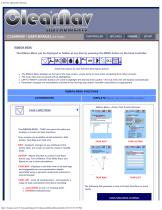
CLEARNAV - USER MANUAL (V5.12 dev) CONTROLLER SETUP RIBBON MENU The Ribbon Menu can be displayed or hidden at any time by pressing the MENU button on the hand controller. • The Ribbon Menu displays at the top of the map screen - press twice to view when navigating from other screens. • The menu item last accessed will be highlighted. • LEFT or RIGHT controller buttons are used to highlight the desired menu option - the sub menu list will display automatically. • Parameter changes are immediately included in the moving map and/or ClearNav calculations as appropriate. RIBBON MENU FUNCTIONS Ribbon...
Open the catalog to page 4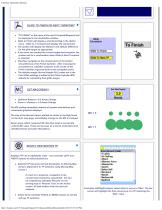
ClearNav Operations Manual • "TO FINISH" or the name of the next Tumpoint/Waypoint will be displayed in the destination window. • Glide to Finish will display a checkered flag in the ribbon menu - Glide to a Tumpoint will display the red pennant. • The system will display the distance and altitude difference for the glide target as appropriate. • If you have not reached the current target task tumpoint, the system ask for a confirmation when Glide to Next Tumpoint is selected. • ClearNav navigates to the closest point on the bottom circumference of the Finish Cylinder. After crossing the circumference,...
Open the catalog to page 5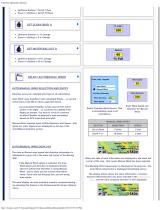
ClearNav Operations Manual • Up/Down Buttons = Scroll 1 Row • Zoom +/- Buttons = Scroll 10 Rows • Up/Down Buttons = 1 % Change • Zoom +/- Buttons = 5 % Change • Up/Down Buttons = 10 % Change • Zoom +/- Buttons = 20 % Change AUTO/MANUAL WIND SELECTION AND ENTRY ClearNav uses your selected wind type in all calculations. 'Auto Wind' uses ClearNav's last calculated Winds... or current winds from a CAI302 or other supported device. Last calculated ClearNav winds may be from much earlier in the flight... or could be zero (000/0) if the flight just started. You have to circle in a thermal to allow ClearNav...
Open the catalog to page 6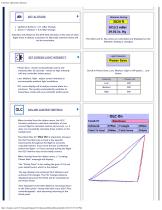
ClearNav Operations Manual SET ALTITUDE • Up/Down Buttons = 0.1 mBar Change • Zoom +/- Buttons = 0.5 mBar Change ClearNav will default to the GPS field elevation at the start of each flight when it obtains a position fix. Manually entered values will not be overridden. Power Save - Screen automatically sets to low intensity after 25 seconds - resets to high intensity with any controller button press. Low, Medium, High - adjust screen intensity to accommodate ambient light conditions. Off - turns display off to reduce current drain to a minimum. The system automatically switches to PowerSave mode...
Open the catalog to page 7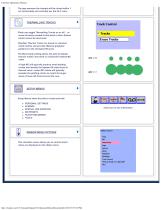
ClearNav Operations Manual The app assumes the triangle will be closed within 1 km horizontally and vertically per the OLC rules. THERMALLING TRACKS Pilots can toggle Thermalling Tracks on or off ... or erase all tracks created to that point in time. Erased tracks cannot be recovered. ClearNav Thermal Tracks are based on real-time climb metrics and provide effective graphical guidance to the strongest lift areas. The MacCready setting allows the pilot to display thermal 'tracks' that meet or exceed the entered MC value. A high MC will typically produce small plotting circles that identify the...
Open the catalog to page 8All ClearNav Inc. catalogs and technical brochures
 ClearNav RAM Mount
1 Page
 ClearNav Extension Cable
1 Page
 CNv Utility* (PC Install)
2 Pages


